-
Export:
-
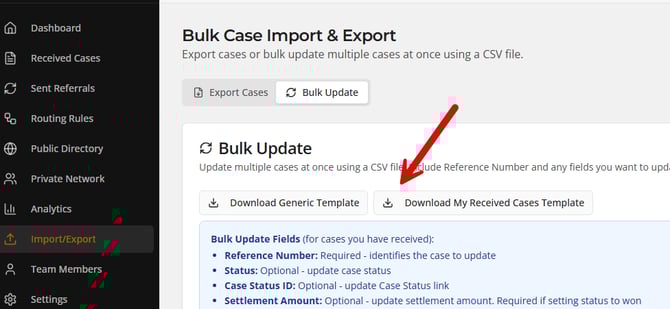
Go to the Import/Export section and then the Bulk Update tab
-
Click "Download My Received Cases Template" as shown below. This will give you all your received cases in an easy to update format
- You can also start with a file from your source CMS as long as you have the reference numbers from Case Xchange
-
-
Update
- Within the exported csv, update the information about each case manually or based on information in your case management system
- If you are a Case Status customer you can also link directly via your Case Status Id to not have to update statuses again
- You can delete any rows that do not need to be updated, but be sure to keep the header column
- If planning to update the status, refer to a list of accepted status changes here: https://info.casexchange.com/en/help/status-transitions
- Within the exported csv, update the information about each case manually or based on information in your case management system
- Import
- Save the file and drag it to or select it from the bottom of the screen in bulk update tab. Then click "Map Columns"
- If you did not rename any of the headers, the mapping will happen automatically and you can skip this step. If they were renamed or you used a file from your case management system you can map them to the corresponding values as shown below (be sure to specify a reference number to map to):
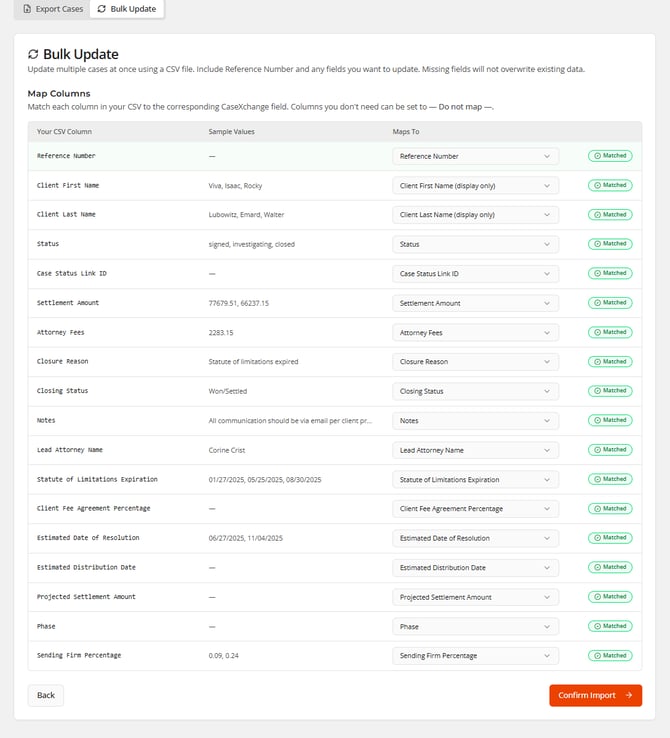
- Click "Confirm Import" and the cases will be updated! Download any failed rows if experiencing any errors in the process
English