
Already a user? Login Here!
🌟Still having trouble? Reach out to our support team for assistance via help@casexchange.com
Add and Manage your firms Team Members
Add team members from your firm to access and review case updates. There is no limit on users; we recommend each person have their own profile.
As the first user, you'll be assigned as an account manager, for adding future roles, please reference our user role definitions to ensure they only have access to the proper features
Adding Team Members
-
Go to Team Members
-
Click Add User

-
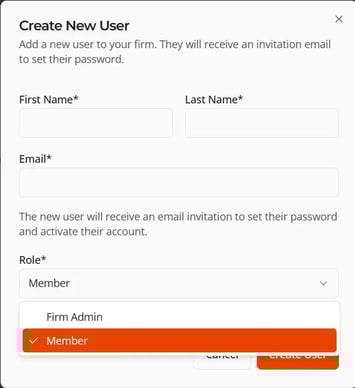
Enter User Details
-
First & Last Name
-
Email
-
User Role
-
-
Click Create User
 to save member details and trigger the invitation email with instructions for creating their Case Xchange account.
-
Users have three days to accept the invitation before it expires and must be resent.
-
❓The initiation link expired, how do I resend?
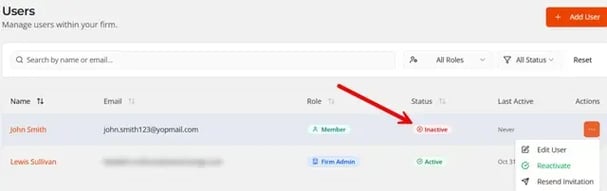
If the invitation link expires, a Firm Admin can resend the email by clicking the three dots under Actions for that person and selecting Resend Invitation
Find more information on managing your team here: Insert creating new user link
Set Up Your Firms Profile
Only firm admins and account managers can make changes to settings.
Firm Details & Contact Information
-
Go to Settings → Firm Profile
-
Confirm firm details are up to date and accurate
-
Firm Name (Required)
-
Description (If Applicable)
-
General Referral Instructions (If Applicable)
-
Contact Information
-
Contact Email (Required)
-
This should be an organization wide contact email.
-
-
Contact Phone
-
Website
-
Address
-
-
Setup Notification Preferences
Global Notification Settings
-
Go to Settings → Notifications
-
Configure Global Notification Recipients. These recipients receive all notifications.
-
Decide on base Notification Recipients and click the corresponding button
-
The setting selected will highlight accordingly
-
-
-
Save Preference
|
Global Setting |
Recipients |
|---|---|
|
Administrators Only |
Only team members set as “Firm Administrators” |
|
Organization Contact Email |
Only the firms main contact email (Set in Firm Profile) |
|
All Team Members |
Ever active team member under that organization |
Add Additional Email Recipients for Notifications
Add extra email addresses to always receive notifications, regardless of the option above. You can add multiple additional recipients to customize notifications if no global settings apply to you.
-
Enter the recipients email then click the “Add” button to save that email to the recipient list.
-
Emails must be added one at a time.
-
Configure Custom Routing Notifications
You can customize notifications with routing rules for cases you send and receive. Set routing rules for firm users and external email addresses. These recipients get notifications alongside your default preference and the extra email recipients configured above.
Received Routing Rules: Configure who receives notifications when your firm receives new referrals or status updates for matching cases.
Sent Routing Rules: Recipients that are notified when your firm sends referrals and receives status updates back from partner firms.
Received Case Routing Notifications
-
Click Add Route
 or “Edit” to update rules
 -
Enter a Route Name and Route Description
-
Set a Priority Level for this route
-
All rules that evaluate to true will receive a notification.
-
-
Toggle on Route is Active

-
Add routing filters
-
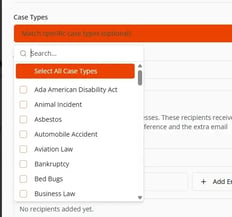
Create filters for specific Case Types and Jurisdictions. Check all that apply when creating the filter.
-
-
Add Recipients
-
Click Add Firm User
 to select existing firm team members
 -
Enter an external email and click Add Email
 to add individuals not in Case Xchange.
-
-
Click “Create Route” to save
Sent Case Routing Notifications
-
Click Add Route
 or “Edit” to update rules
 -
Enter a Route Name and Route Description
-
Set a Priority Level for this route
-
Lower numbers run first. Routes evaluate in ascending priority order. The notification follows the first routing rule it meets.
-
-
Toggle on Route is Active
-
Add routing filters
-
Create filters for specific Case Types, Jurisdictions, and Statuses. Check all that apply when creating the filter.
-
If “Statuses” is left blank it will apply to all Statuses
-
-
-
Add Recipients
-
Click Add Firm User
to select existing firm team members -
Enter an external email and click Add Email
to add individuals not in Case Xchange.
-
-
Click “Create Route” to save
Notification Preference Scenario Examples
|
Desired Notification |
Configuration |
Outcome |
|---|---|---|
|
Only the firm's contact email should receive notifications. |
Global Notification Setting: Organization Contact Email |
Only the email listed as the contact in Firm Profile settings will receive notifications. |
|
Only firm admins and specific team members receive notifications |
Global notification setting: administrators only Additional email recipients: Firm User 1; Firm User 2; Firm User 3 |
Firm Admins and Team Members 1, 2, and 3 will receive all notifications. |
|
Only one person should receive notifications, but they are not on Case Xchange |
Global notification setting: organization contact email Additional email recipients: Individuals' external emails
|
The contact email in Firm Profile Settings and the added external email will receive notifications. |
|
Admins should always be notified. Other team members should be notified only when there is a new case in PA or NJ. |
Global notification setting: administrators only New received case routing rule: Name: PA/NJ routing |
Firm Admins always receive notifications. Firm Members 1 and 2 are notified if the case is in PA or NJ. |