
Summary
Configure the Case Xchange–Litify integration so your firm receives referrals automatically and syncs status and field updates back to Case Xchange. This guide walks through the full receiving-firm setup: planning your configuration, preparing your Salesforce/Litify fields, enabling CX Intake records, and building the flows that move data in both directions.
Before you Begin
These steps reflect the Case Xchange managed package v3.7. You'll need Firm Admin or Account Manager access in Case Xchange, plus Salesforce admin access. If your org is on the Litify Bridge package, several of the fields below may already exist; confirm before creating.
For installation instructions & a summary of the package components view Salesforce Integration Setup
Plan your Configuration
Decide the following before you build anything. These choices shape every flow later in the guide.
- Receiving object — which object your team should receive new referrals on.
- Update-source objects — which object(s) status and field updates should be sent back from, and the path a referral travels across them. Example: Intake → Matter.
- Trigger points — when each status or field update should fire back to Case Xchange (for example, on a stage change, or when a settlement amount is entered).
- Firm-tracking object — which object stores the originating (sending) firm, so inbound referrals can resolve to it.
Step 1: Configure Objects/Fields
Confirm or create the fields let the integration match inbound referrals to the correct records in Salesforce/Litify.
Note — Litify Bridge package. If the Bridge package is installed, these fields ship pre-built in the caseexchange namespace. Confirm they exist before creating duplicates. If you are not on the Bridge, create them as described below.
Fields To Keep In Mind:
- Referral link — on each object you'll map updates back from, add a lookup field linking the record to its originating CX Intake, or a text field that stores the CX Reference Number/ID. This is what lets a status or field update resolve back to the correct Case Xchange referral.
- CX Firm ID — on the Firm object, create a unique External ID text field that stores the originating firm's Case Xchange firm ID. When an inbound referral arrives, Salesforce uses this field to match it to the correct Firm record.
- CX Case Type ID (only if using the Litify Case Type object) — create a unique External ID text field that maps each Litify Case Type to its Case Xchange equivalent, so inbound referrals resolve to the correct case type.
Step 2: Enable CX Intake records in Case Xchange
- In Case Xchange, go to Settings → Integrations.
- Click Manage next to the Salesforce integration.
- Enable Create CX Intake Records.
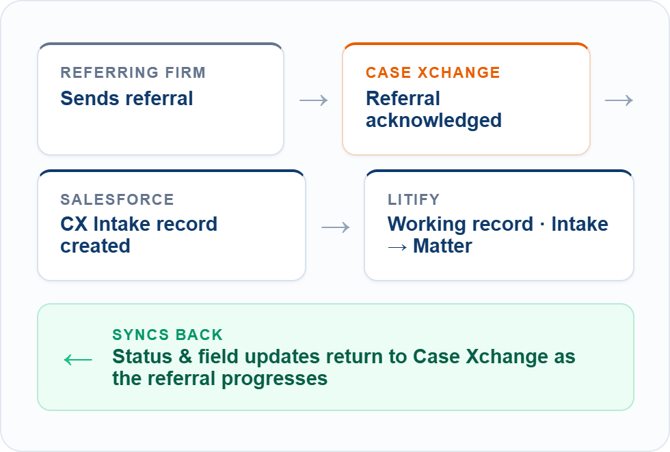
Case Xchange will now create a record on the CX Intake object each time a referral is acknowledged.
Tip. To view CX Intake records in Litify, open the Case Xchange app from the App Launcher and select the CX Intake tab.
What the CX Intake record stores. Each CX Intake is a flat object (all fields are text except dates) and holds the referral's core data from Case Xchange, including CX Firm ID (the sending firm's ID), Sending Firm Name, and CX Reference Number.
Step 3: Build your flows in Litify
With your fields in place and CX Intake records enabled, the rest of the setup happens in Litify. This is where you decide how referrals move through your org: how new referrals become working records, and how your team's updates flow back to Case Xchange. Details outlined below are recommendations based on a standard Litify setup. The package is designed to be customizable based on a firms individual processes.
Receiving a new referral
When a referral is acknowledged in Case Xchange, a CX Intake record is created in Salesforce. Below are are examples that match a common setup for how to handle inbound referrals. Your firm should design this process based on its own requirements.
Option A — Review before creating a downstream record
Choose this if your intake team wants to accept or reject each referral directly from the CX Intake record, and only create a working record for the ones they accept.
Example: When a CX Intake record is created, a team member reviews it and accepts or rejects it from that record. On accept, a new record is created on the appropriate object to manage the referral. On reject, the referral is updated back in Case Xchange.
- Create a record-triggered flow that runs on update of the CX Intake record. When the record is marked accepted, create a record on the correct target object.
- In the same flow, when the record is marked rejected, use the Update Referral Status action with
status = rejectedto set the referral's status back in Case Xchange.
Option B — Create the downstream record automatically
Choose this if every inbound referral should flow straight through to your working object with no manual review step.
Example: When a CX Intake record is created, a Litify or intake record is generated automatically.
- Create a record-triggered flow that runs on create of the CX Intake record, generating a record on the correct target object.
Sending status and field updates back to Case Xchange
Map which object and which change should fire each update. Because your team may work a referral across more than one object, build a separate flow on each object that needs to push updates back — each watching for the specific change that should sync.
Before building, decide for each object:
- What change triggers an update? A status/stage field reaching a value, a financial field being populated, a date being set, and so on.
- Is it a status update or a field update? These use different actions and follow different rules.
- How does the flow find the referral? Every update needs the referral identifier. Use the lookup field from Step 1 to retrieve the linked CX Intake (or the stored CX Reference Number) and target the correct referral.
Structure each flow using this pattern:
- Set the trigger. Run the flow on update (or on create), with entry conditions narrowed to only the change that should sync. Tight entry conditions keep the flow from firing on unrelated edits.
- Use the Case Xchange Case/Reference ID. Use the lookup or stored ID from Step 1 to identify the Case Xchange referral this record maps to.
- Add the correct update action (status or field — see below).
- Run asynchronously. Don't block the user's save on the callout to Case Xchange. Use an asynchronous path so the API call runs after the record commits.
Status updates
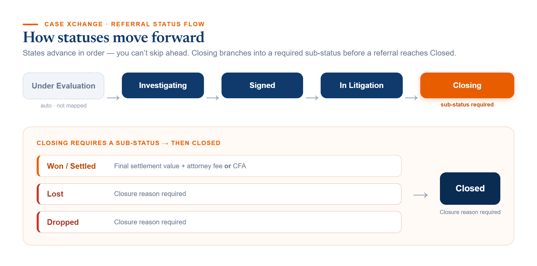
Trigger a status update when a change should move the referral forward in Case Xchange, based on the Intake or Matter's progress in Litify. Case Xchange enforces the order below — you can't skip states.
Case Xchange status values
Values Map & Validation
| Status label | API name | Validation notes |
|---|---|---|
| Investigating | investigating |
None |
| Signed | signed |
None |
| In Litigation | in_litigation |
None |
| Closing | closing |
closingStatus required (See below) |
| Closed | closed |
closureReason optional depending on previous closing status. |
| Rejected | rejected |
reason Required |
Case Xchange closing sub-status values (the closingStatus input; set when status = closing)
| Sub-status label | API name | Validation notes |
|---|---|---|
| Won/Settled | won_settled |
Final settlement value required, plus the Client Fee Agreement or Attorney Fee |
| Lost | lost |
Closure reason recommended |
| Dropped | no_longer_pursuing |
Closure reason recommended |
Note. All cases enter at Under Evaluation in Case Xchange — that status is created automatically and doesn't need to be mapped. Closing always requires a closingStatus, and if it's Won/Settled, the settlement amount and either attorney fees or the client fee agreement must be present on the referral or validation fails. You can set other field values in the same operation as a status update.
Technical Notes on Flow Design
Using managed actions to trigger status updates
- Investigating, Signed, In Litigation, Closing (Lost or Dropped), Closed, Rejected, and Withdrawn — use the Apex action Update Referral Status (CaseXchange), passing
status(andclosingStatus/closureReasonwhere applicable). - Closing → Won/Settled — The settlement amount and fees must already be on the referral when the status transitions. To do this, use the Case Xchange: Update Referral subflow first, which patches detail fields and transitions status in a single operation. Then trigger the status update.
- For all closing statuses — set every required field to avoid validation errors. We recommend adding field validation where necessary to prevent sync failures.
Field Updates & Field Formatting Validation Requirements
Use field updates when case details (financials, dates, notes) change on the local record and should reflect back to the referring firm.
Use the Apex action Update Received Referral (CaseXchange), passing the referral identifier and only the fields that changed — it's a partial update, so any field you leave out stays as-is. Input variables are outlined in the next section. Important field formatting notes are below.
clientFeeAgreementPercentageis a decimal between 0.00 and 1.00 (e.g.,0.33for 33%).sendingFirmPercentageis a whole number between 0 and 100.- Date fields use ISO 8601 date-time format.
Case Xchange action input reference for the actions mentioned in this guide:
Update Received Referral (CaseXchange) — Apex action
Field updates only. All inputs except id are optional.
| Input variable | Mapping notes |
|---|---|
id |
Required. Referral identifier (CX Case/Reference ID). |
phase |
Current phase of the case. |
notes |
Internal notes. |
leadAttorneyName |
Name of the lead attorney. |
estimatedDateOfResolution |
ISO 8601 date-time. |
estimatedDistributionDate |
ISO 8601 date-time. |
statuteOfLimitationsExpiration |
ISO 8601 date-time. |
clientFeeAgreementPercentage |
Decimal 0.00–1.00 (e.g., 0.33 = 33%). |
sendingFirmPercentage |
Whole number 0–100 owed to the sending firm. |
projectedSettlementAmount |
Projected settlement value. |
settlementAmount |
Actual settlement amount. |
attorneyFees |
Total attorney fees. |
Outputs: isSuccess, referral (CX_ReceivedReferralDetail), error.
Update Referral Status (CaseXchange) — Apex action
Transitions a referral to a new status. In v3.3 this action does not carry financial fields — set those via Update Received Referral or the subflow.
| Input variable | Mapping notes |
|---|---|
id |
Required. Referral identifier. |
status |
Required. One of: investigating, signed, in_litigation, closing, closed, rejected, withdrawn. |
reason |
Reason for the status change. |
closingStatus |
Required when transitioning to closing. |
closureReason |
Optional reason when transitioning to closed. |
Outputs: isSuccess, referral (CX_Referral), error.
Case Xchange: Update Referral — subflow (Autolaunched Flow)
Updates status and/or detail fields in a single operation. Included / Not Included toggles; only toggled-on fields are sent. If Status is provided it transitions the referral; if detail fields are provided it patches them.
| Input variable | Mapping notes |
|---|---|
Referral_Id |
Required. Case Xchange Case/Reference ID. |
Status |
New status value. |
Status_Reason |
Reason for the status change. |
Closing_Status |
Required when transitioning to closing. |
Closure_Reason |
For closed transitions. |
Phase |
Current case phase. |
Notes |
Internal notes. |
Lead_Attorney_Name |
Lead attorney. |
Estimated_Date_of_Resolution |
ISO 8601 date-time. |
Estimated_Distribution_Date |
ISO 8601 date-time. |
Statute_Of_Limitations_Expiration |
ISO 8601 date-time. |
Client_Fee_Agreement_Percentage |
Decimal 0.00–1.00. |
Sending_Firm_Percentage |
Whole number 0–100. |
Projected_Settlement_Amount |
Currency. |
Settlement_Amount |
Currency. |
Attorney_Fees |
Currency. |
Outputs: Succesful_Update (Boolean — system spelling, one "s"), Error_Message (Text).