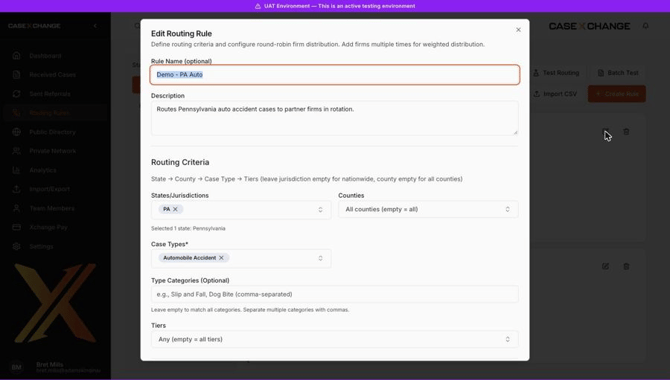
Routing rules let your firm automatically send new referrals to the right partner firms. Each rule matches cases by state, county, case type, case category, and tier, then distributes matching cases across a list of firms in round-robin order.
Step 1: Open Routing Rules
Click Routing Rules in the left menu. You will see all of your existing rules. Use the States list on the left to filter rules by state.
Step 2: Create a new rule
- Click Create Rule.
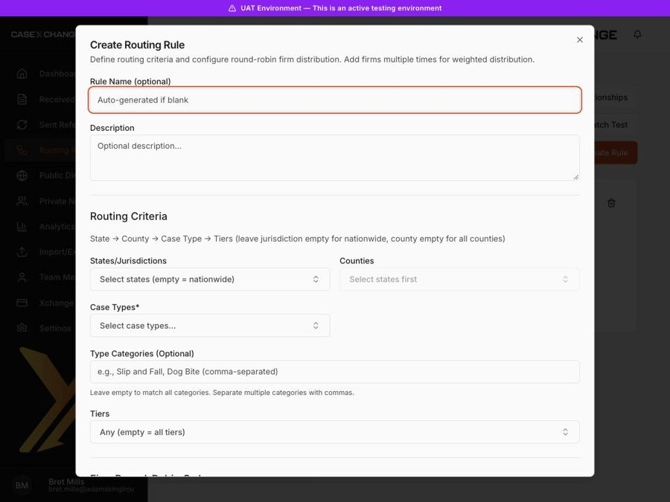
- Enter a Rule Name (optional – one is generated if left blank) and a Description (optional).
Step 3: Set your routing criteria
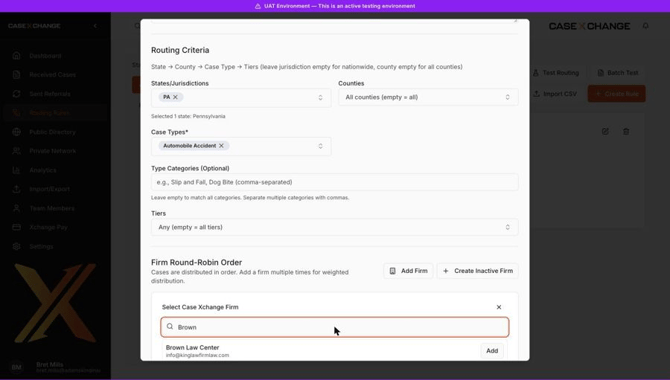
Criteria are applied in this order: State → County → Case Type → Tiers.
- States/Jurisdictions – Select one or more states. Leave empty for a nationwide rule.
- Counties – Optionally narrow to specific counties. Leave empty for all counties in the selected state(s).
- Case Types (required) – Select the case types this rule applies to, such as Automobile Accident.
- Type Categories (optional) – Enter categories separated by commas (e.g., Slip and Fall, Dog Bite). Leave empty to match all categories.
- Tiers – Select specific tiers, or leave empty to match all tiers.
Step 4: Build the firm rotation
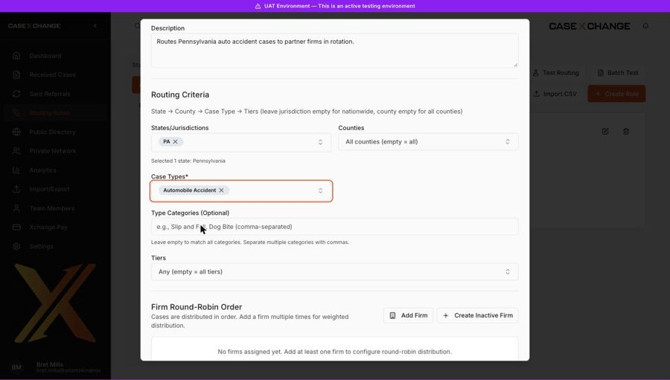
In the Firm Round-Robin Order section, add the firms that should receive cases from this rule. Cases are sent to each firm in sequence.
- Click Add Firm.
- Search for a partner firm by name and click Add.
- Repeat for each firm in the rotation.
Tips:
- To send a firm more cases, add it more than once. For example, a rotation of Firm A → Firm B → Firm A sends two out of every three cases to Firm A.
- Use the up and down arrows (or drag the handle) to change the order.
- Use Evaluated on attempts to control which referral attempts a firm is considered for.
- Use Create Inactive Firm to add a firm that is not yet on Case Xchange.
Step 5: Save the rule
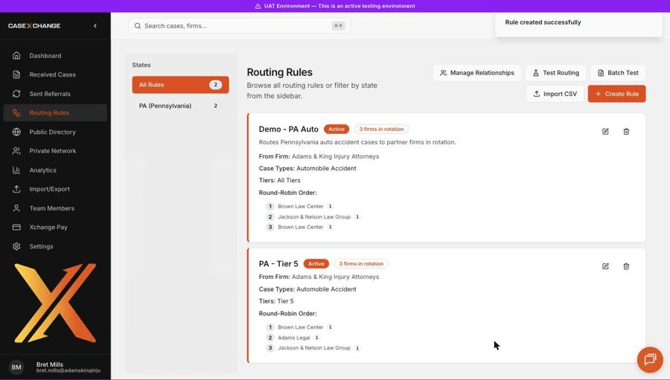
Click Create Rule. You will see a Rule created successfully confirmation, and the new rule appears in your list showing its status, criteria, and round-robin order.
Test your routing
Before relying on a rule, use Test Routing to simulate a case and see which firm would receive it.
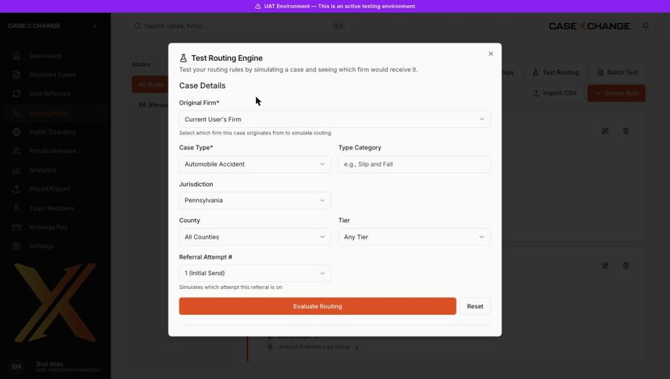
- Click Test Routing at the top of the Routing Rules page.
- Choose the Original Firm, Case Type, and Jurisdiction. Optionally set a Type Category, County, Tier, and Referral Attempt #.
- Click Evaluate Routing.
The Routing Result shows the selected firm, its position in the queue, the rule that matched, any referral instructions, and which firm is next in the rotation.
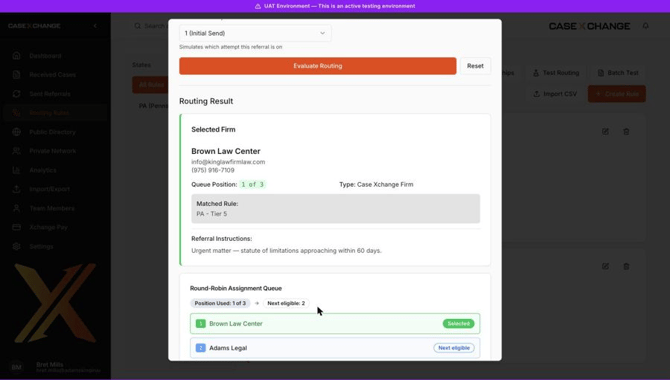
Tip: If more than one rule could match the same case (for example, two Pennsylvania auto accident rules), run a test to confirm which rule is applied.
Edit or delete a rule
- Edit – Click the pencil icon on a rule to update its name, criteria, or firm rotation, then save your changes.
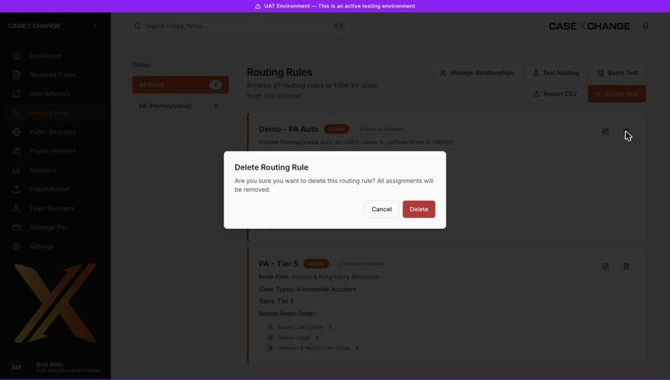
- Delete – Click the trash icon and confirm. Deleting a rule removes all of its firm assignments and cannot be undone.