
Xchange Pay lets your firm pay referral fees to partner firms directly through Case Xchange. Payments are processed securely by our payment partner, Confido, and your bank details are never stored on Case Xchange servers.
This article walks you through:
- Accepting a payment setup invite
- Adding your bank account
- Using the Xchange Pay tab
- Setting up a billing contact
- Paying a referral fee (electronically or by check)
Step 1: Accept the payment setup invite
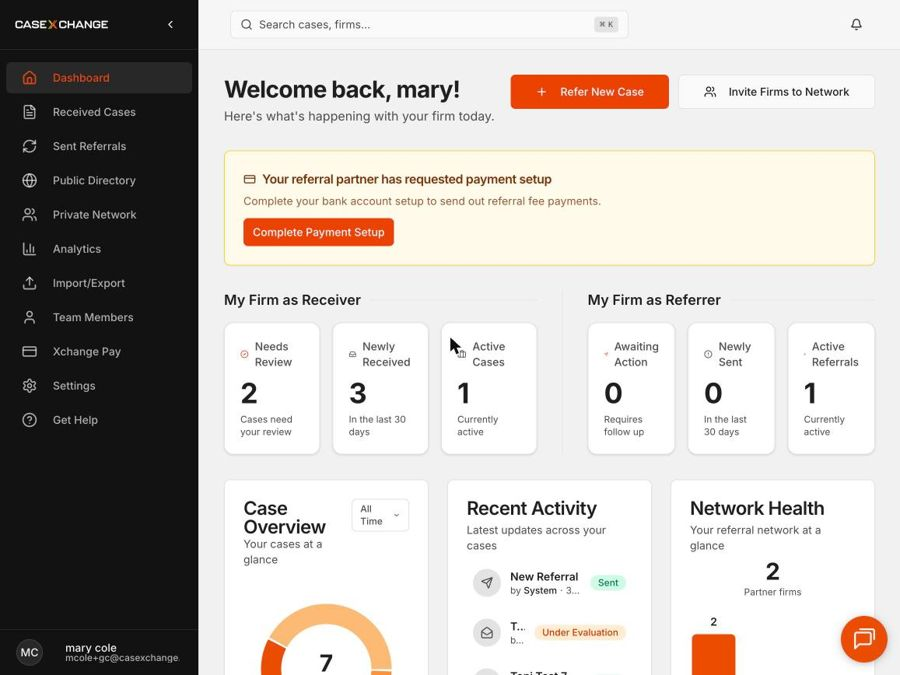
When a referral partner invites your firm to Xchange Pay, you will see a banner at the top of your Dashboard that reads Your referral partner has requested payment setup.
- Click Complete Payment Setup.
Step 2: Add your bank account
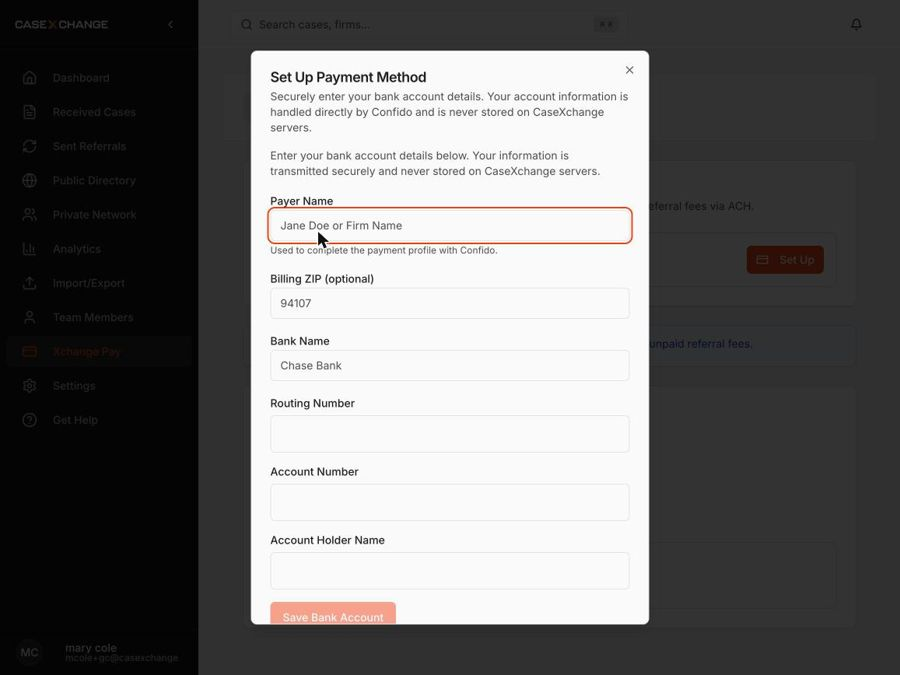
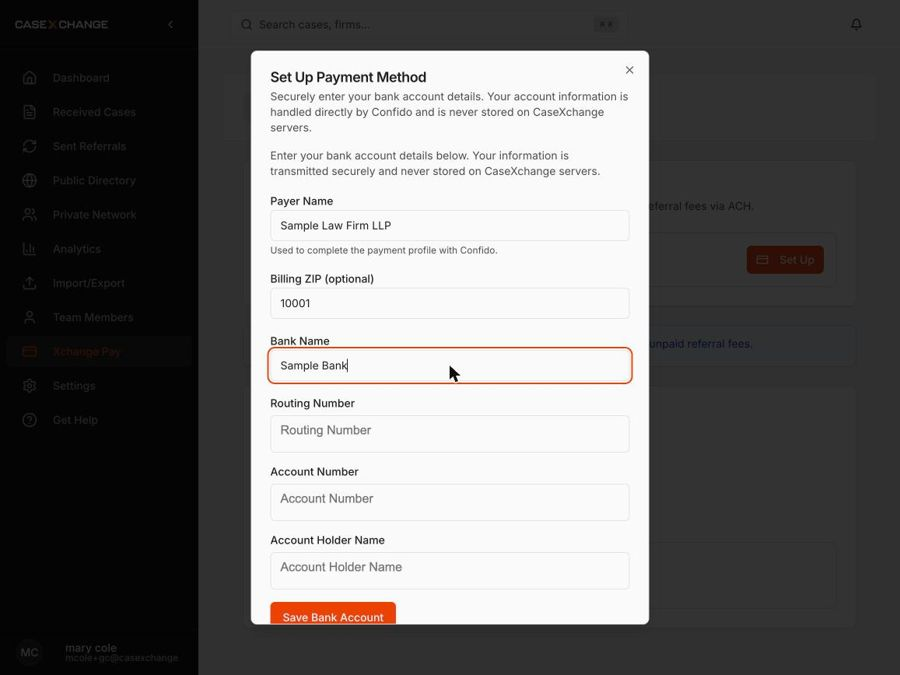
The Set Up Payment Method window opens. Enter your firm's bank details:
- Payer Name – your name or firm name
- Billing ZIP (optional)
- Bank Name
- Routing Number
- Account Number
- Account Holder Name
Click Save Bank Account. Your account is now connected and ready to send referral fee payments via ACH.
[GIF: Part 1 – Dashboard invite and bank account setup]
Step 3: Get to know the Xchange Pay tab
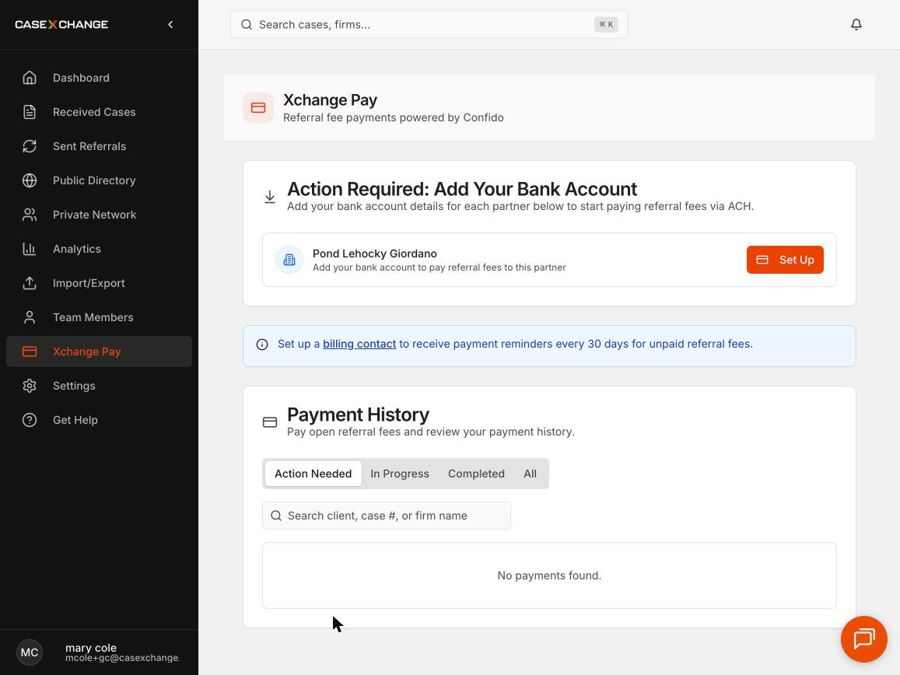
Once you are invited, you will have access to the Xchange Pay tab in the left menu. From here you can:
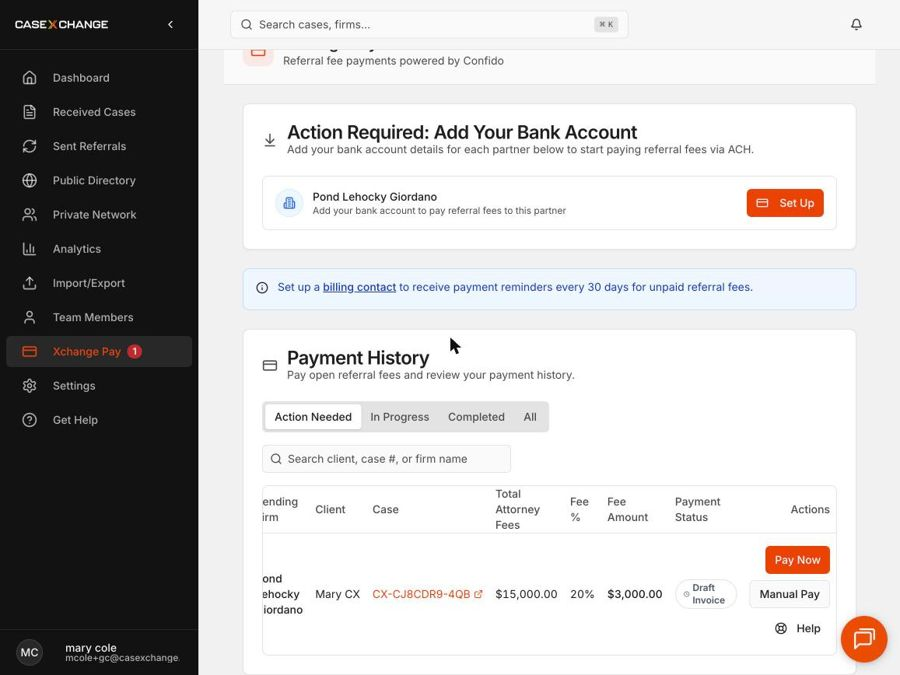
- Finish setting up payment methods – if you did not complete setup from the dashboard, or a new partner firm invites you, they will appear under Action Required: Add Your Bank Account. Click Set Up next to the partner.
- See new invites from other firms in your network.
- Review all payments in Payment History, organized into tabs:
- Action Needed – open invoices waiting for payment
- In Progress – electronic payments being processed by your bank
- Completed – finished and manually recorded payments
- All – every payment
Step 4: Set up a billing contact
The billing contact receives reminder emails every 30 days for any unpaid referral fees.
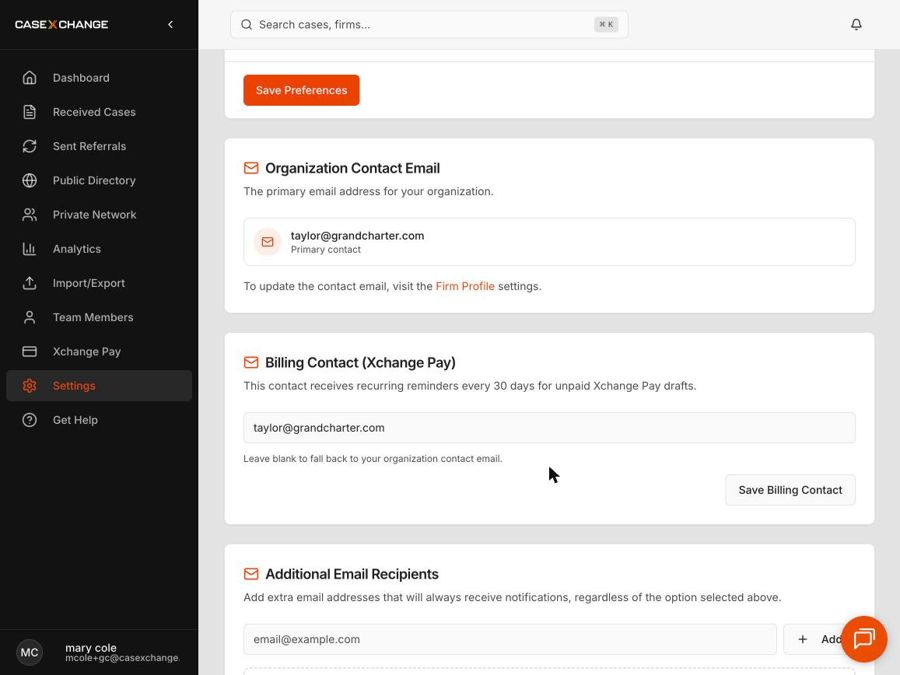
- On the Xchange Pay tab, click the billing contact link in the blue banner. This opens Settings > Notifications.
- Scroll to Billing Contact (Xchange Pay).
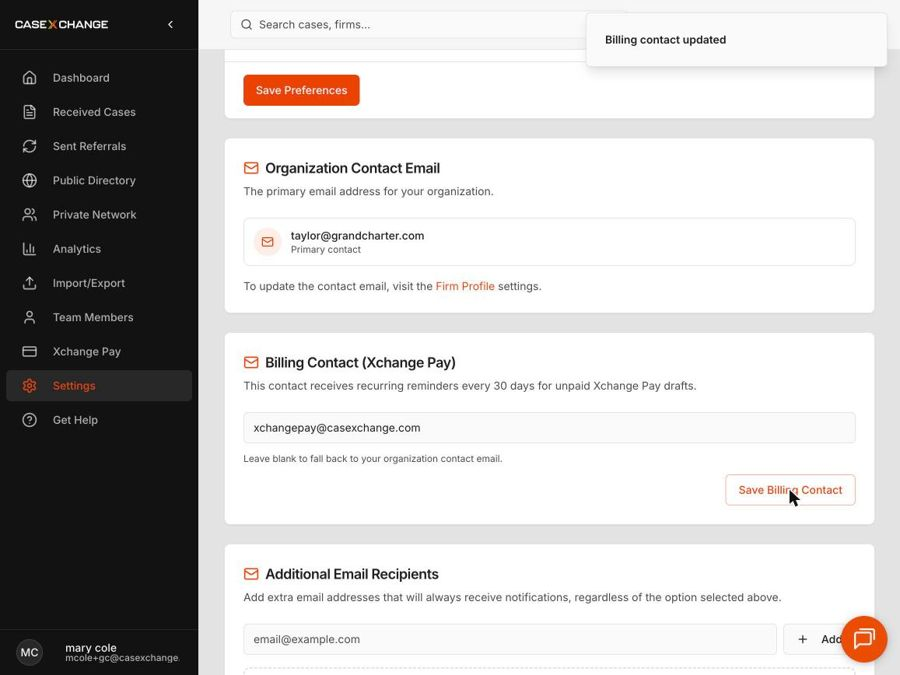
- Enter the email address that should receive payment reminders. If you leave it blank, reminders go to your organization contact email.
- Click Save Billing Contact. You will see a Billing contact updated confirmation.
[GIF: Part 2 – Xchange Pay tab and billing contact]
Step 5: Pay a referral fee
When a partner firm sends you an invoice, it appears under Payment History > Action Needed, showing the sending firm, client, case, total attorney fees, fee percentage, and fee amount. You have two ways to pay:
Option A: Pay electronically (Pay Now)
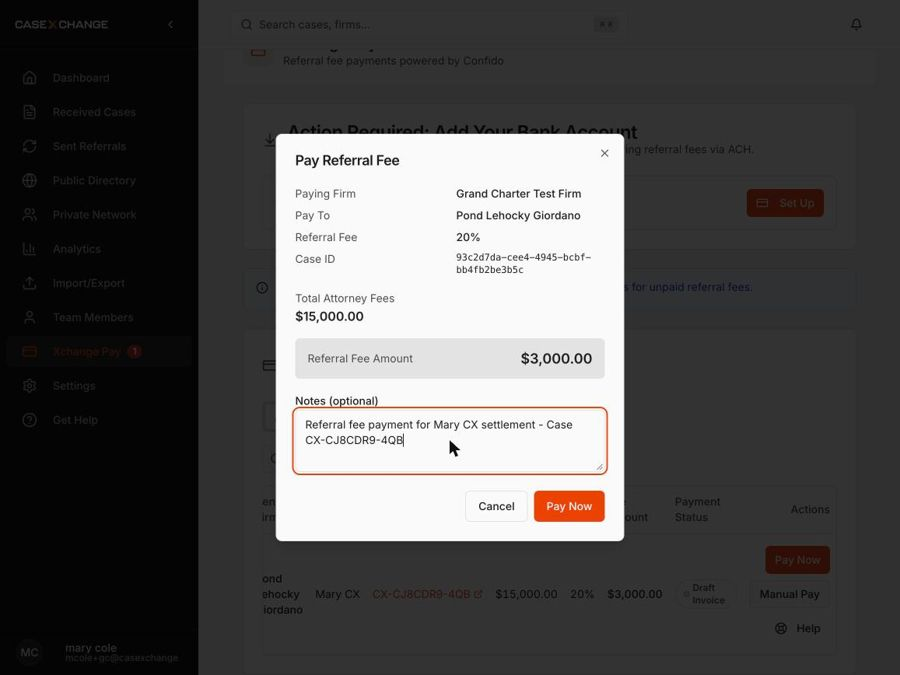
- Click Pay Now next to the invoice.
- Review the details in the Pay Referral Fee window, including the referral fee amount.
- Add any Notes (optional).
- Click Pay Now to submit.
Once paid, the payment will show as In Progress until it is fully processed by your bank.
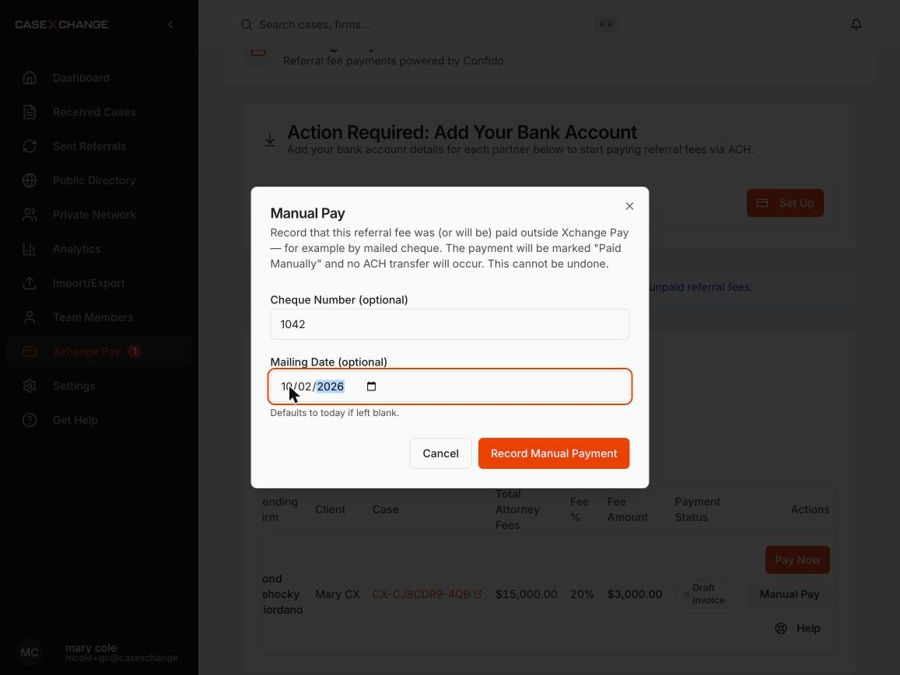
Option B: Record a check (Manual Pay)
Use Manual Pay to record a check that has already been sent outside of Xchange Pay. No ACH transfer will occur.
- Click Manual Pay next to the invoice.
- Enter the Cheque Number and Mailing Date (both optional; the date defaults to today).
- Click Record Manual Payment.
Once logged, manual payments will show as Completed. Note: Recording a manual payment cannot be undone.
[GIF: Part 3 – Paying an invoice]
Need to correct an amount?
If the amount, attorney fee, or referral fee is incorrect, open the case by clicking the case number in the invoice row and make your updates there before paying.