
Steps to Add a Firm to Your Network
- Log in to Case Xchange & open the 'Private Network' tab.
- Click 'Manage Relationships'
- Click 'Add Relationship'

- Add New Relationship from either an Existing Firm or by Creating a New Firm
(Always start by looking for an existing firm)
- Selecting an Existing Firm
- Search for the existing firm in the 'Select Firm' field.
- Select the firm from the results. A Not yet active badge means the firm is on Case Xchange but hasn't claimed its account yet.
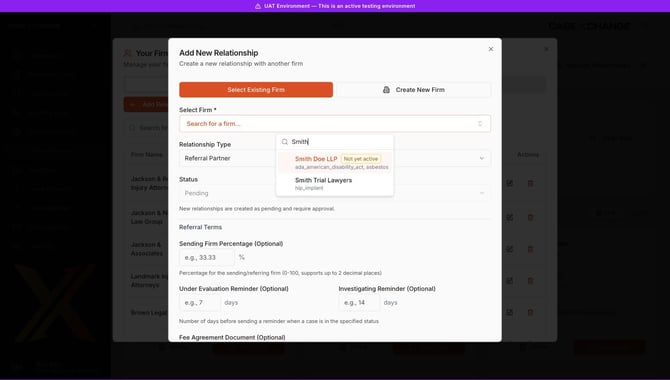
- If you cannot find the firm, click on the 'Create New Firm' tab.
- Create New Firm
- Enter all required details for the firm you would like to create:
- New Firm Name
- Contact Email
- Website
- Street Address, City, State/Province and ZIP/Postal Code (Country is optional)
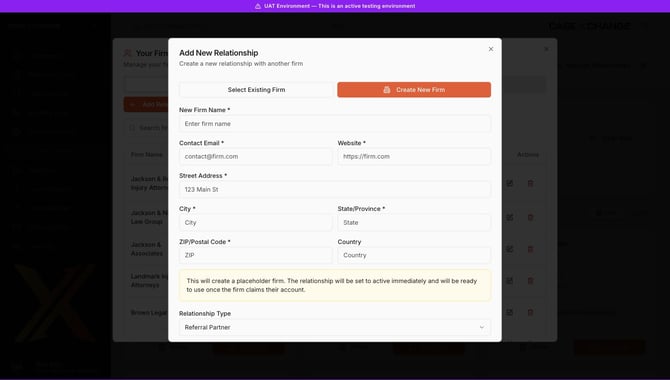
- Enter all required details for the firm you would like to create:
- Selecting an Existing Firm
- Add any referral terms (optional):
- Sending Firm Percentage: the referring firm's share (0–100, up to 2 decimal places).
- Under Evaluation and Investigating Reminders: the number of days before a reminder is sent while a case is in that status.
- Fee Agreement Document: upload a PDF, DOC, DOCX, JPEG or PNG (max 25MB).
- Notes: any internal notes about the relationship.
- Click 'Create Relationship'
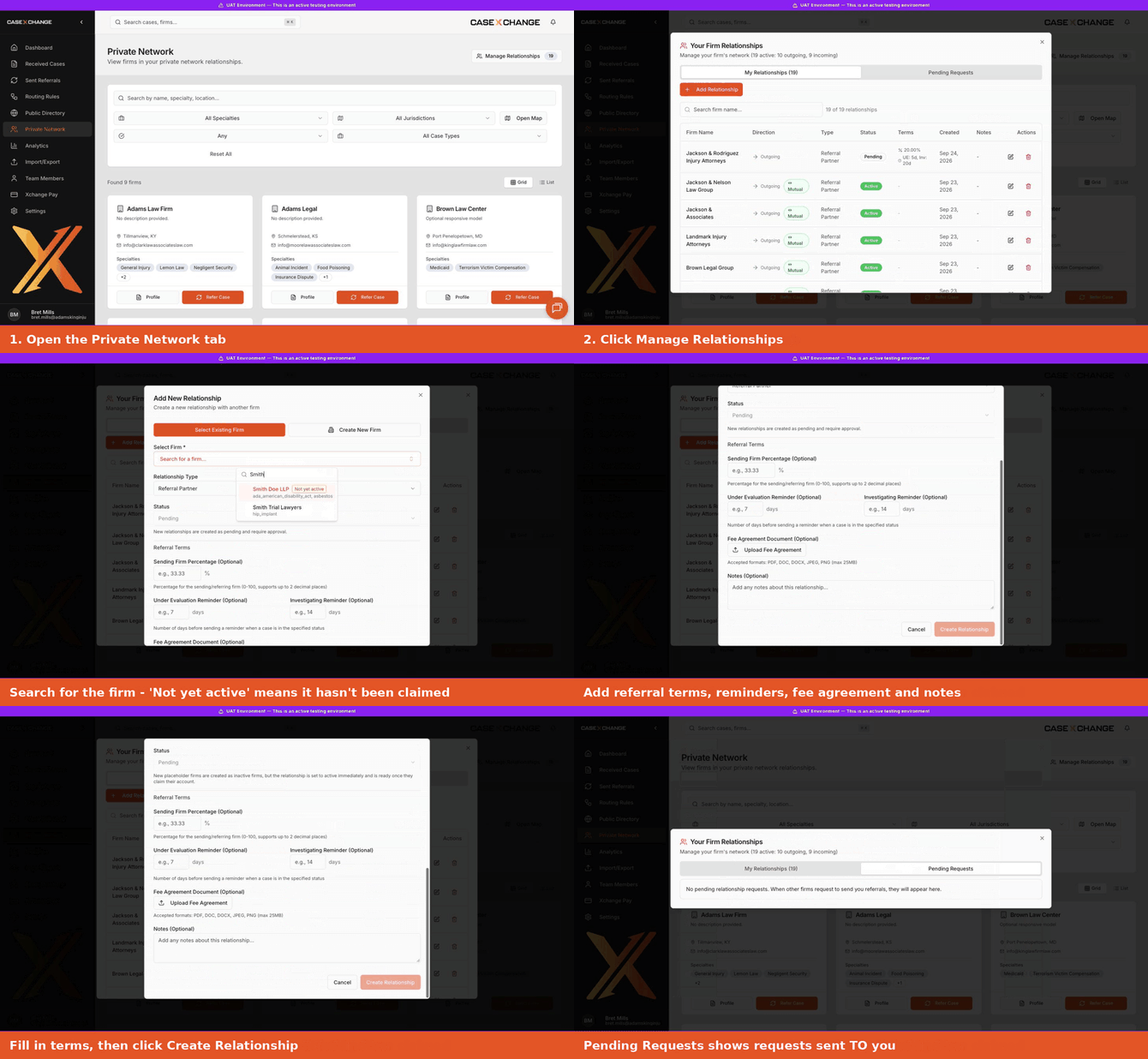
Relationships with existing firms show a Pending status until the other firm accepts. You can track them in My Relationships. The Pending Requests tab shows requests other firms have sent to you. Relationships with new firms are set to active right away and are ready to use once the firm claims its account.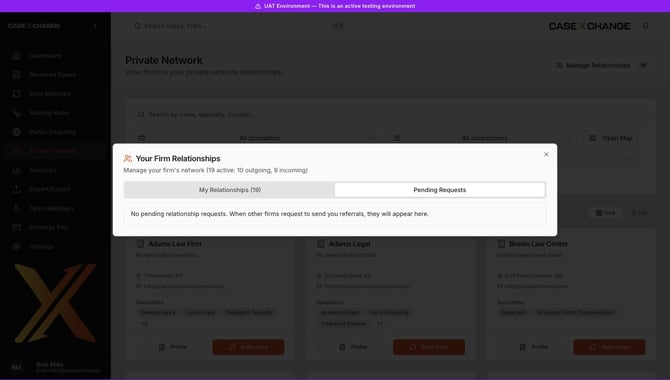
Custom Rate Rules (Referral Fee Agreements)
Use Referral Fee Agreements when your fee split depends on the case type, the state, the settlement amount or the case phase, or changes over time.
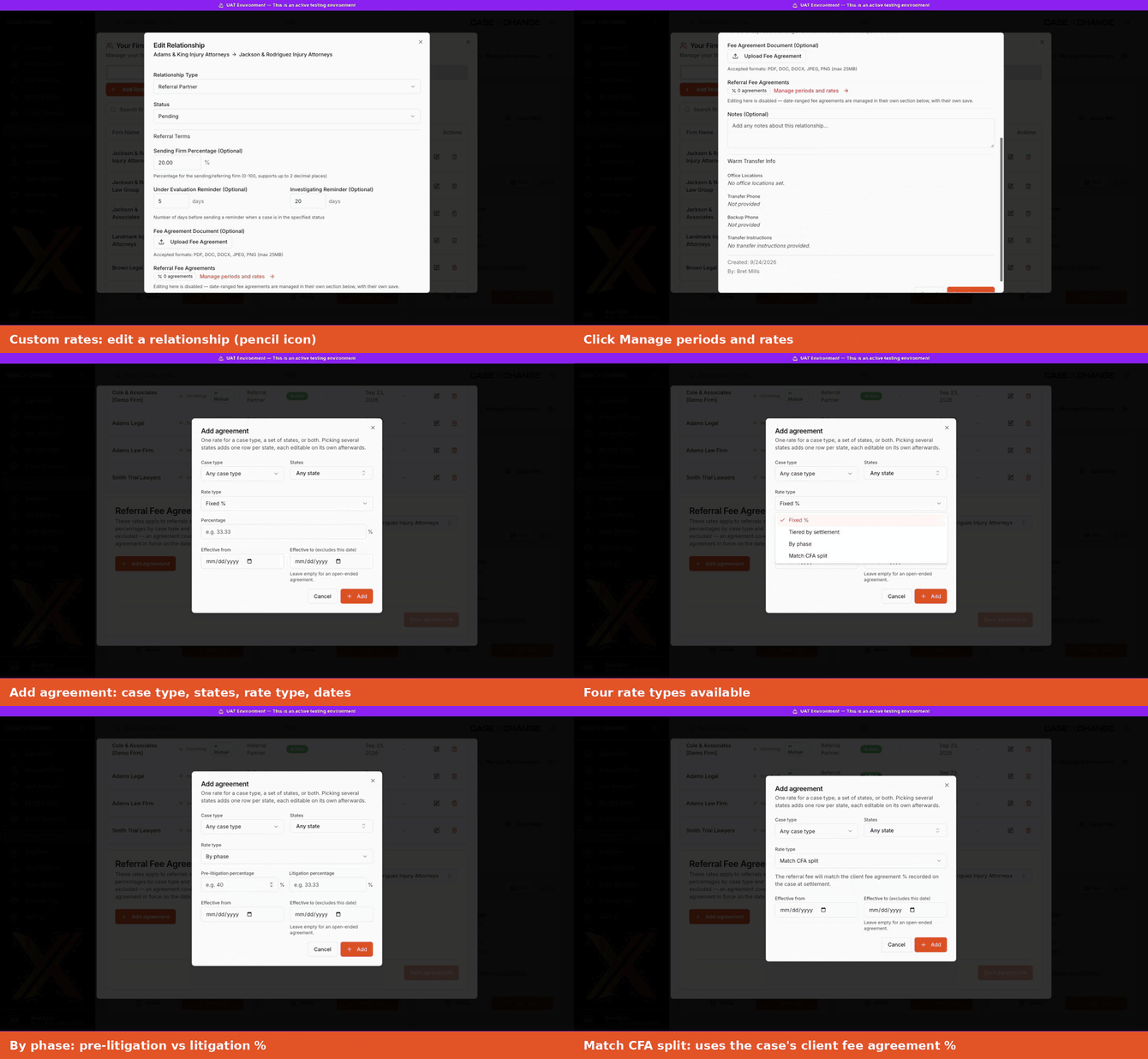
- In Manage Relationships, click the edit (pencil) icon next to the firm.
- Under Referral Fee Agreements, click Manage periods and rates.
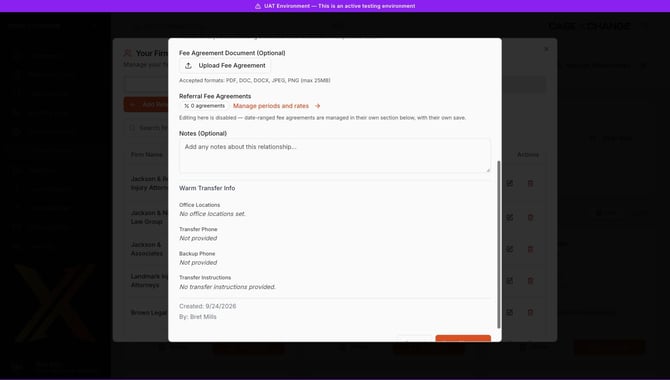
- Confirm the Partner firm, then click Add agreement.
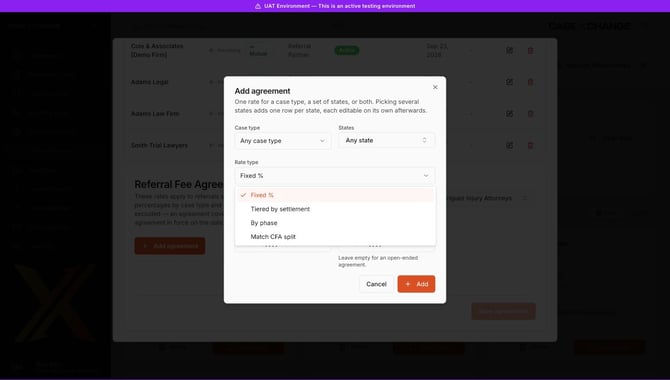
- Choose a Case type (or Any case type) and one or more States (or Any state). Picking several states adds one row per state, and each row can be edited on its own afterward.
- Choose a Rate type:
- Fixed %: one percentage for every matching referral.
- Tiered by settlement: a different percentage for each settlement range. Add a tier for each upper bound. The last tier covers "and above."
- By phase: one percentage for pre-litigation and another for litigation.
- Match CFA split: the referral fee matches the client fee agreement % recorded on the case at settlement.
- Set Effective from and, if needed, Effective to. The end date is excluded: the agreement covers up to, but not including, that date. Leave it empty for an open-ended agreement.
- Click Add, then Save agreements.
How they apply: Each referral sent to that firm uses the agreement that was in force on the date the referral was sent.
What Happens Next
Existing Firms
- If they are already a firm on Case Xchange, they will receive an email notification letting them know they were added to your network.
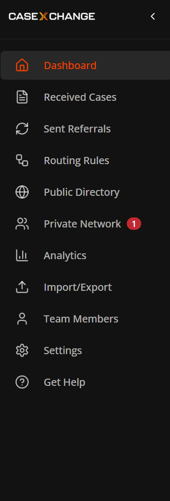
- When they log into Case Xchange, they will also have a notification to accept the relationship on the Private Network tab. (Shown Below)
New Firms
- A new firm will be created and they will need to go and claim their firm. You can send them the following instructions to claim their firm. They will receive an automated email after the firm is claimed with our onboarding guide.
- When they claim their firm the relationship will automatically be in place and ready for you to send to them!